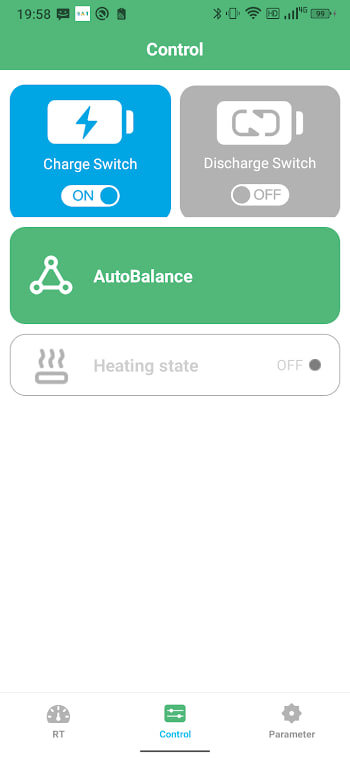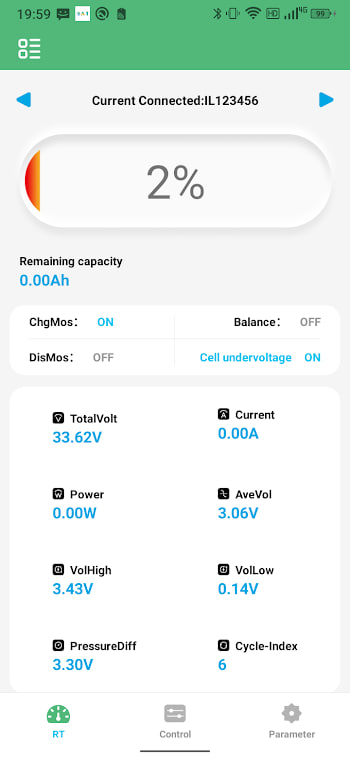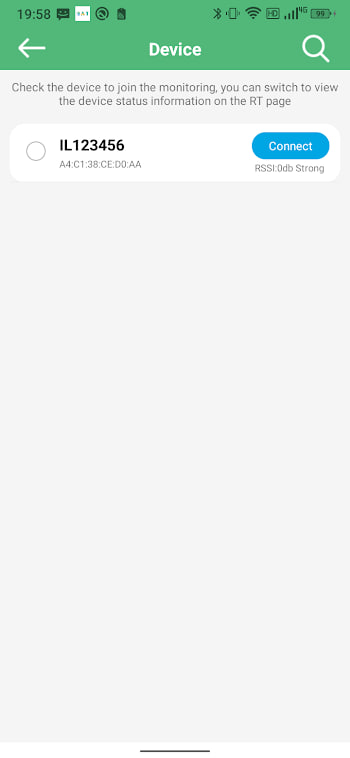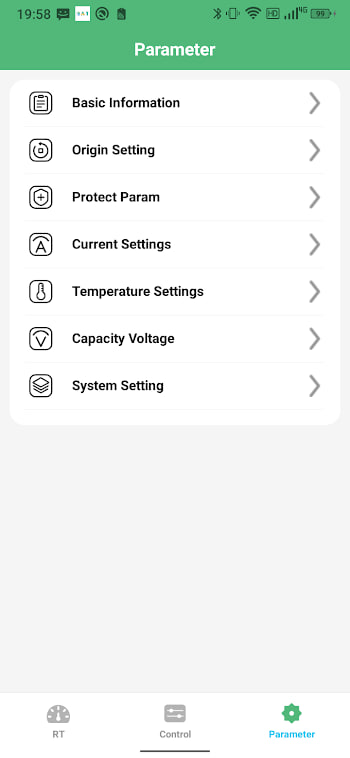
What actually changed in v1.1.3
BAT-BMS v1.1.3 landed on 9 July 2026, three days after the last maintenance build, and unlike v1.1.2 this one is not purely under the hood. There is a real, visible feature this time, plus the usual round of polish that comes with every release. Three things changed:
- New: a 7-day cell voltage history graph. Open any cell's detail screen and you will now see a rolling line graph of that cell's voltage over the last seven days, sitting right underneath the live reading.
- Continued Bluetooth reconnection improvements, building on the reliability work shipped in v1.1.2, aimed at the same "why is it taking so long to find my battery again" moment.
- General stability fixes reported by users since v1.1.2, mostly small papercuts rather than one headline bug.
Version number, for anyone keeping their own change log: build 13, still 11.3 MB, still the same package com.bms.grenergy, still Android 5.1 and up. Full details and the file itself live on the APK download page.
The new voltage history graph, in detail
This is the part worth spending time on, because it is the first genuinely new screen element BAT-BMS has shipped in a while. Previously, every cell's voltage was a live number that updated in real time and nothing else — useful for right now, useless for "was this cell always like this or did it just start drifting." The moment you closed the app, that history was gone.
In v1.1.3, each cell keeps a rolling seven-day log of its voltage, sampled while the app is open and connected to your BMS. That log renders as a simple line graph directly on the cell detail screen, below the live voltage readout. You get:
- A visual trend line per cell, so a slow drift downward (or upward) is obvious at a glance instead of something you'd only notice by remembering yesterday's number.
- A rolling seven-day window — old points age out as new ones come in, so the graph always shows "the last week," not an ever-growing dataset that needs managing.
- Per-cell, not pack-wide: each cell in your pack gets its own graph, which matters because balancing problems show up as one or two cells behaving differently from the rest, not the whole pack moving together.
Two things worth knowing about how it works under the hood. First, the log is local: it lives on your phone, tied to that specific battery pairing, and is not uploaded anywhere — there is no new permission required and no background tracking when the app is closed. Second, because logging only happens while the app is actively connected, gaps in your usage (a week where you never opened the app) will show as gaps in the graph rather than invented data. That is a reasonable trade-off: an honest gap is more useful than a smoothed-over guess.
Why a graph beats a single number
A single live voltage reading answers "is this cell fine right now." A history graph answers a more useful question: "is this cell fine compared to where it was." Those are different problems, and the second one is usually the one that actually catches a battery issue before it becomes a roadside problem.
Cell drift — one cell in a pack slowly diverging from its neighbours — is one of the most common early warning signs of an ageing or imbalanced lithium pack, and it is notoriously hard to catch from memory. A cell sitting at 3.28V today looks completely normal in isolation. The same cell having quietly slid down from 3.34V over the past five days, while its neighbours held steady, is a very different story — and that is exactly the pattern a trend line surfaces immediately that a single number never could. This is the same reasoning behind why we cover active vs passive balancing and why your SOC reading drifts as separate topics: batteries misbehave gradually far more often than they fail suddenly, and gradual problems need a timeline, not a snapshot.
If you monitor multiple packs, or you are the kind of user who checks in on a fleet of e-rickshaw batteries, this is arguably the most practically useful thing BAT-BMS has added since Bluetooth monitoring itself. A five-second glance at seven days of history replaces what used to require actually remembering, or writing down, numbers from a week ago.
The other, quieter changes
The Bluetooth and stability work in this release is deliberately unglamorous, and that is by design. v1.1.2 already targeted reconnection reliability across a wider range of phone chipsets; v1.1.3 continues that same thread rather than declaring it finished after one release. Bluetooth Low Energy behaviour genuinely varies enough between Android manufacturers that "reconnect reliability" is realistically an ongoing, incremental effort rather than a single fix you ship once. The stability fixes are similarly a collection of small reported issues rather than one dramatic bug — the kind of release that will not show up in a screenshot but should make the app feel a little more solid day to day.
Should you update right now
Yes, and more so than the last update, because this time there is an actual feature to gain rather than just stability you can't see. Your pairings, settings, and now your in-progress voltage logs all carry over untouched when you update. If you are on v1.1.2, updating costs a two-minute install and gets you the history graph immediately — it will simply start logging from the moment you update, so the earlier in the week you install, the more useful your first graph will look. If you are still on v1.0.10 or v1.0.9, this is a good moment to jump straight to v1.1.3 rather than updating twice.
How to update safely
Updating is the same install-over-the-top process as any BAT-BMS release, not a fresh setup:
- Download
bat-bms-1.1.3.xapkfrom the APK page — v1.1.2, v1.0.10 and v1.0.9 stay available there too, in case you ever need to roll back. - Open it with your XAPK installer and tap Install. You do not need to uninstall the old version first.
- Your paired batteries, names and settings carry over automatically.
- Open the app once after installing and confirm the version shown in settings reads 1.1.3.
If you have never installed a BAT-BMS update before, the full walkthrough with screenshots is in our install guide, and the general update process, including how to roll back if a build ever misbehaves, is covered in the update guide.
What to check after updating
Once you are on v1.1.3, reconnect to each pack you monitor and open a cell's detail screen to confirm the new graph is rendering — it will start essentially empty right after updating and fill in as you use the app over the coming days, so do not be surprised if day one looks like a single dot. Everything else — live voltage, temperature, protection status — should read exactly as it did before, since this release does not touch protection logic or how readings are calculated, only how voltage history is displayed. If you have not done it yet, this is also a sensible moment to set a pairing password if your battery does not already have one; it takes about the same amount of time as the update itself and closes a gap that has made real news this year.